
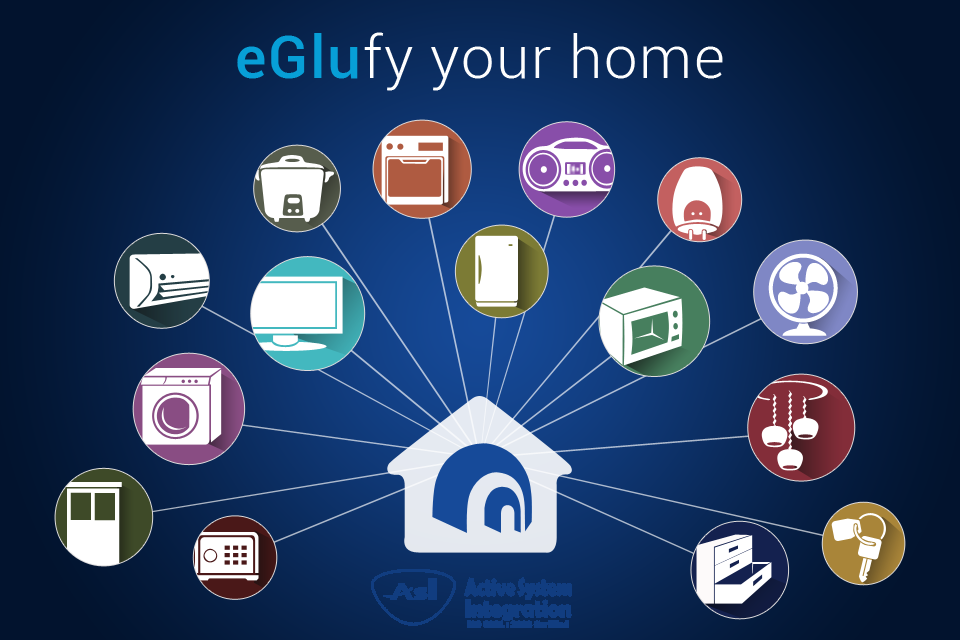
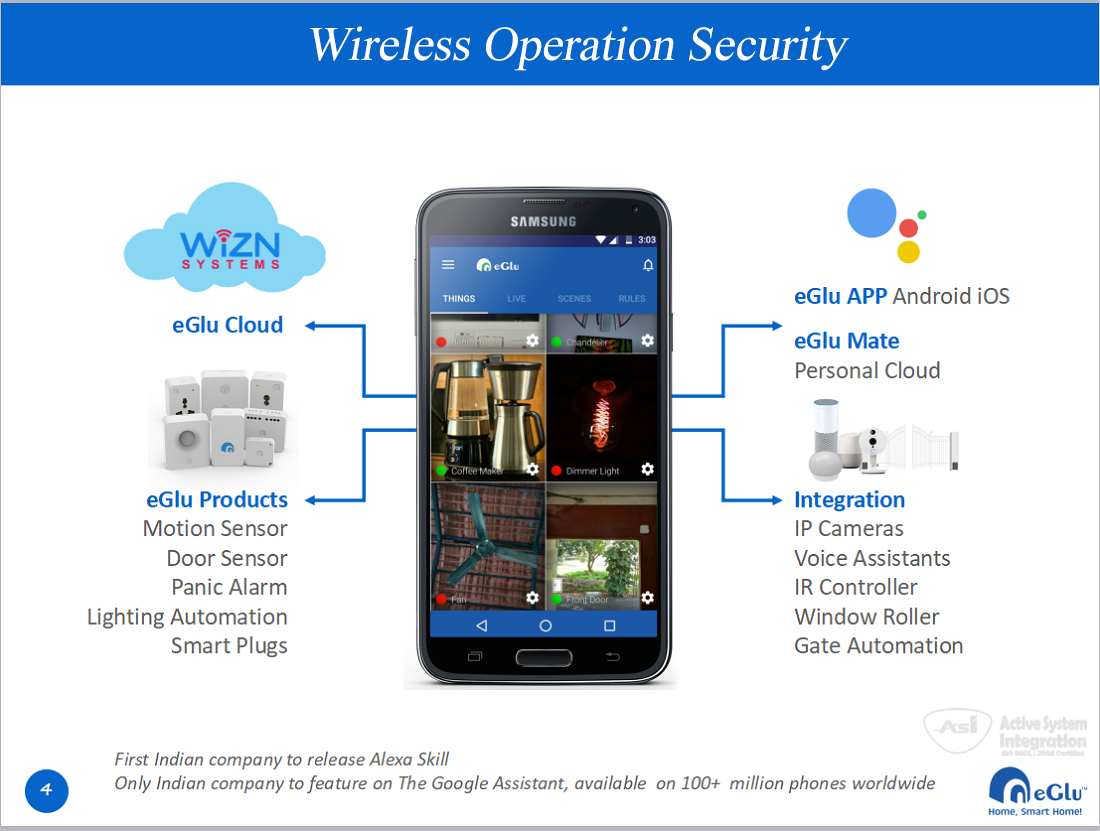
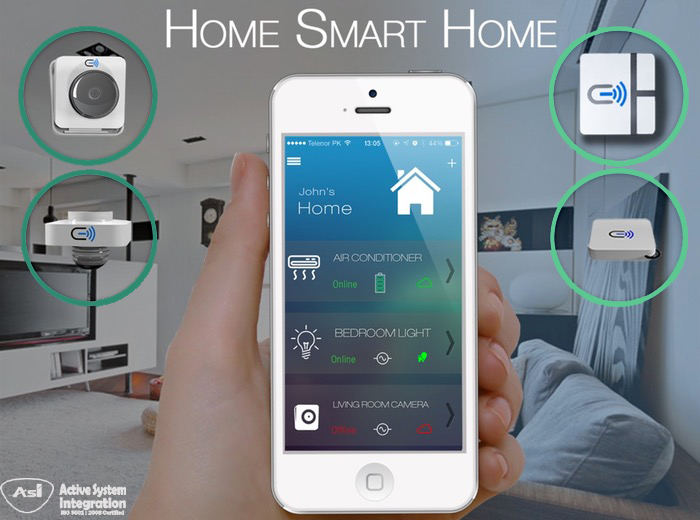
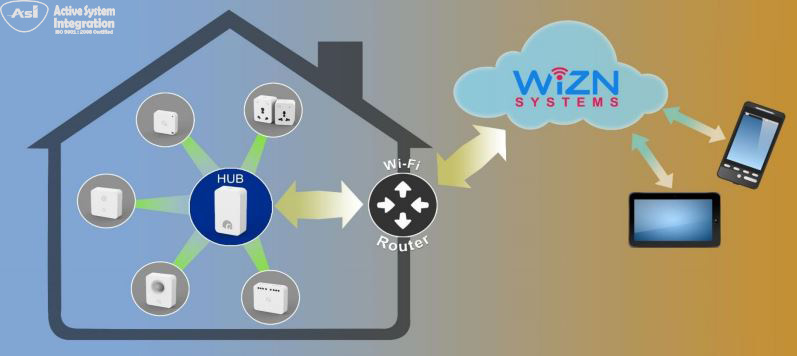
eGlu is a wireless Smart Home solution
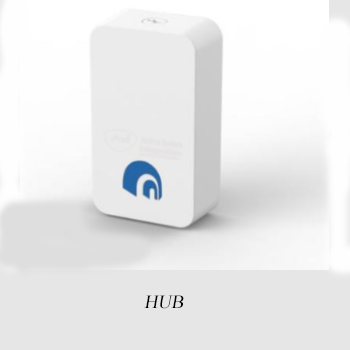
eGlu HUB connects to internet through Wi-Fi router
use of integrated technological building
Has a potential for high false alarm rate
Whether you are an end-user seeking to deploy a security camera system
Digital Controls for brightness
You Won’t Lose Your Keys
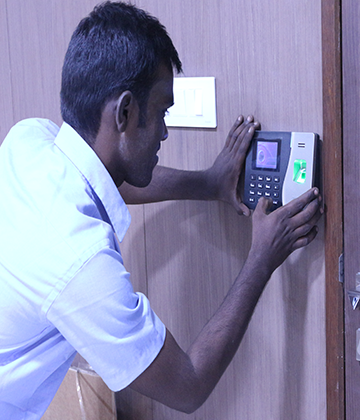
It is quick and easy with an access control system
cctv camera surveillance solutions for the business or home owner who require state of the art technology at affordable prices... ASI is a direct Dealer of security cameras, video surveillance systems, and CCTV equipment. We supply analog CCTV cameras, HD security cameras, IP cameras, and complete video surveillance systems. We supply our equipment to homeowners, business owners, government agencies, and any other type of organization, any size..
Most of our business comes from the Tamil Nadu, however, we do ship our products everywhere in the tamilnadu. No project is too small or too large for us to handle. We have trained sales engineers that can help design a system that will fit your requirements and budget.
Depending on our experience and history we are confidence you will be interesting in the products
we supplied as well as the service we provided. We will never stop to serve you more as time goes on.
Our Active System Integration is dealer of CCTV, is the most common method of video surveillance. CCTV is widely used for security and monitoring purposes. In industrial plants,
CCTV equipment is used to observe operations from a central control room, for example when the environment is not suitable for humans.
In our day-to-day life, we typically use several electronic appliances such as calling bell, TV remote, automatic outdoor lights, automatic door opening systems, fire alarm systems, etc.
The most essential electronic device at home or industry or any other place where there is a chance of fire accident is a fire alarm circuit. The fire alarm circuit can be defined as an electronic circuit used for identifying fire accident and alert. Thus, by using the fire alarm circuit, we can avoid financial loss and also save people from dangerous fire accidents.
Automation and technology would be a great boon if it were creative,if there were more leisure, more opportunity to engage in raising a family,
providing guidance to the young, all the stuff we say we need. It'll work when there's a shared sense of destiny

eGlu is a wireless Smart Home solution
eGlu HUB connects to internet through
Wi-Fi router
User can control and monitor
using a mobile APP from anywhere

Home automation company for Smart
Living and provides benefits like security,
convenience and energy
savings to homeowners.

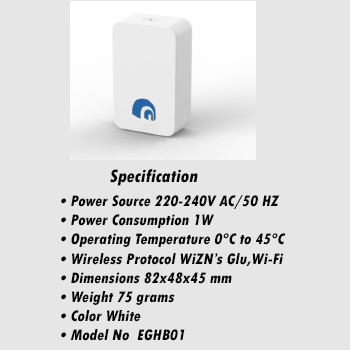
Each HUB can support up to 127 eGlu devices
Additional HUBs can be added to increase
range or to have more devices
Access to other
users can be given at HUB level

The first step is to create an eGlu user account after downloading the APP Once the user has a verified eGlu account, a HUB can be commissioned into it Once the HUB is commissioned to a user account, devices can be added to it Commissioned HUB and devices can not be used with any other user account.

After registering, verify your email address by clicking the link sent to your email account Your mobile number can also be used to create eGlu account

After logging-in, the next step would be to install an To install a HUB only requirement is a Wi-Fi router with internet connection Once a HUB is commissioned into a user’s account, it can not be commissioned again for a different user eGlu HUB
.png)
Connect phone to the same Wi-Fi to which HUB has to be commissioned Preferably keep the HUB in the same room as the router, during commissioning If not, ensure that the Wi-Fi signal at the HUB is higher than -75dBm Later on HUB can be moved around the house to get optimal range.
 contd.png)
Press ‘Get Started’ button, APP will discover eGlu HUB A unique eGlu HUB ID will be displayed as shown above The Wi-Fi SSID to which will be connected will also be shown Enter the Wi-Fi password and press ‘Start’ button to complete the process.

Internet should be available while adding devices When the HUB is in scanning mode, the light indicator will blink light blue (cyan) Press the button on the device for the APP to detect the device Once the device is added, the APP will inform you

For better range in the house, place the HUB at maximum height from the ground Ensure that the Wi-Fi signals are good where hub is placed All the eGlu devices should be placed at least 4 feet away from the HUB Always have HUB and Wi-Fi router on a power back-up In case of any issues, check the HUB Light indications for troubleshooting.

*eGlu Mate is a separate APP which acts like a local cloud when the internet connection is lost. It has to be installed on an Android device which is connected to same Wi-Fi router as the HUB. More details about eGlu Mate are provided in Slide#30.

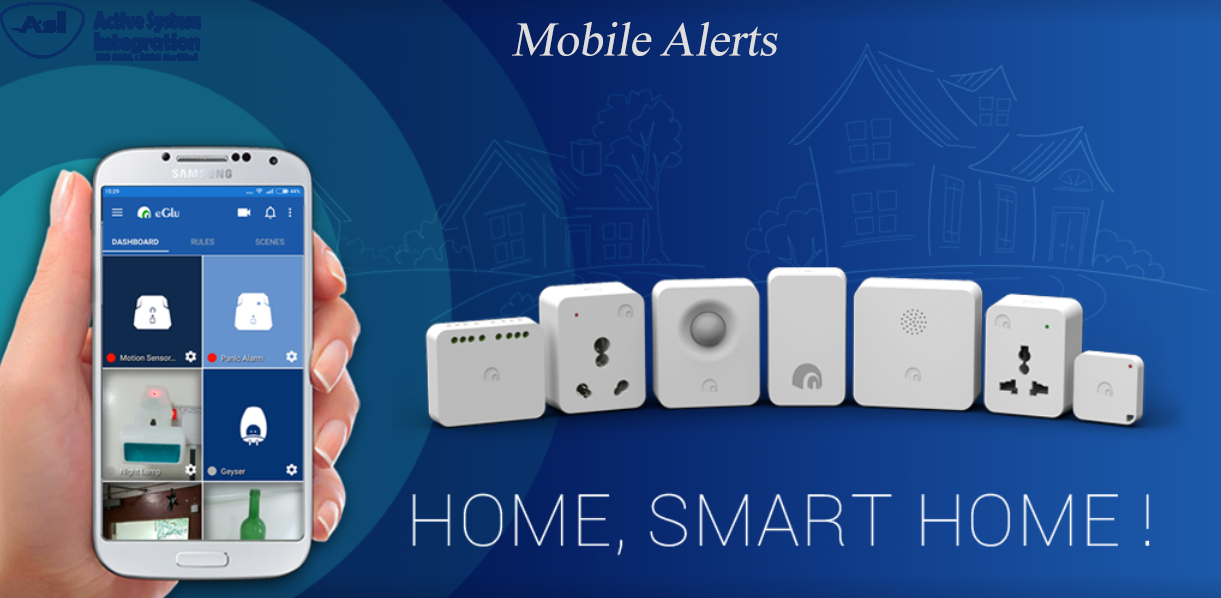
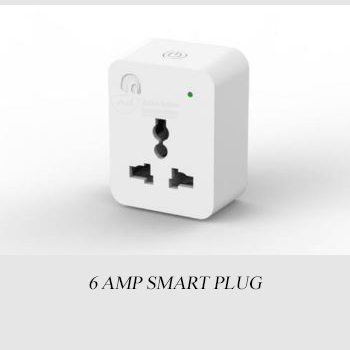
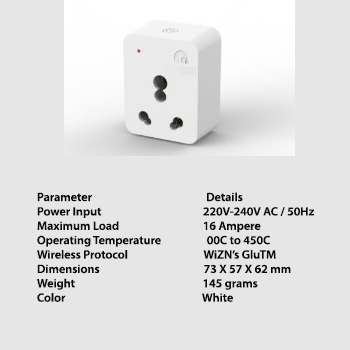
This device is for indoor use only and is not water proof. Maximum load allowed in 6A only. Higher load can permanently damage the device The plug should be kept permanently on power The button on the top can be used for the local ON/OFF of the plug

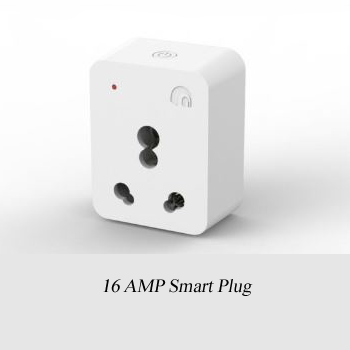
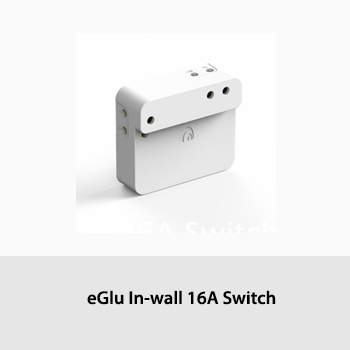
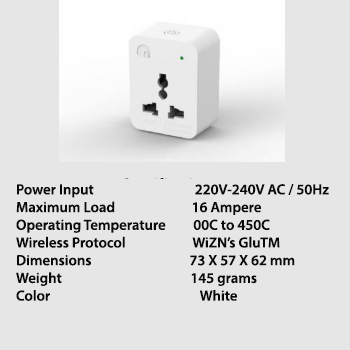
This device is for indoor use only and is not water proof. Maximum load allowed in 16A only. Higher load can permanently damage the device The plug should be kept permanently on power The button on the top can be used for the local ON/OFF of the plug.

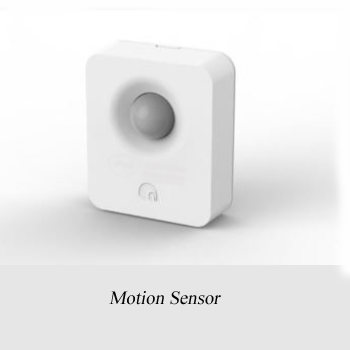
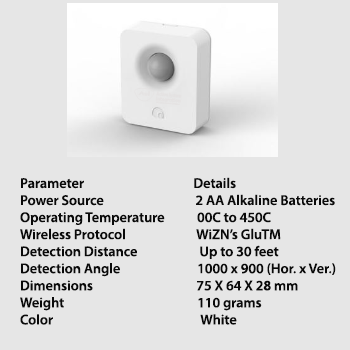
This device is for indoor use only and is not water proof. The Motion Sensor will detect the presence has long as there is movement Motion Sensor should be ideally placed at a position where people will go across it It can detect both occupancy as well as un-occupancy.

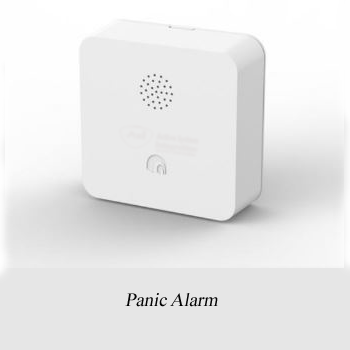
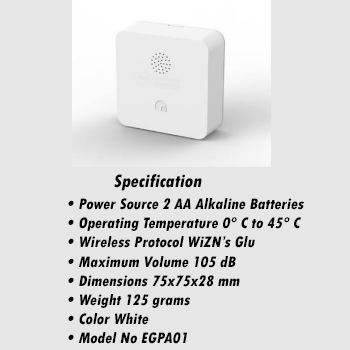
This device is for indoor use only and is not water proof Panic Alarm can be triggered by the APP or from a ‘rule’ It should be placed at a location which is not visible No object should be placed with-in 2 feet of the Panic Alarm.

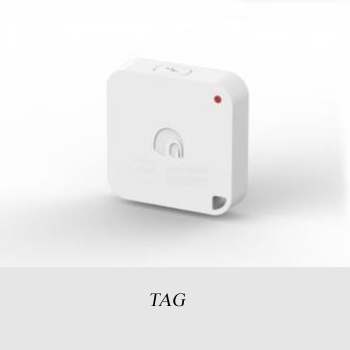
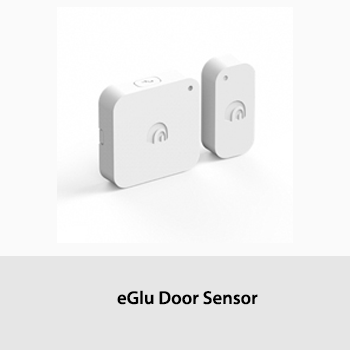
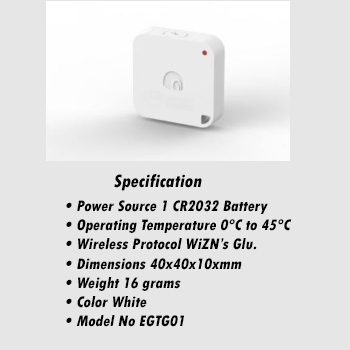
TAG is for indoor use only and is not water proof. It has four modes: (1) Door Sensor (2) Key Finder (3) Presence Sensor (4) Remote Button For normal hinged doors, no magnet is required to be placed next to it The door opening sensitivity can be set using the APP For the sliding door, a small magnetic strip has to be placed on the frame of the door.

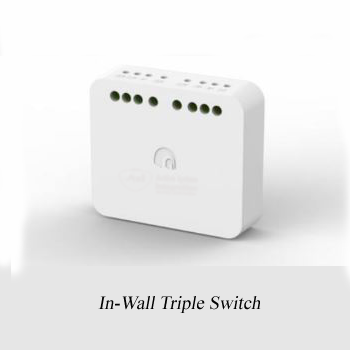
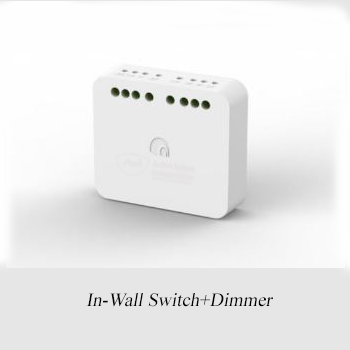
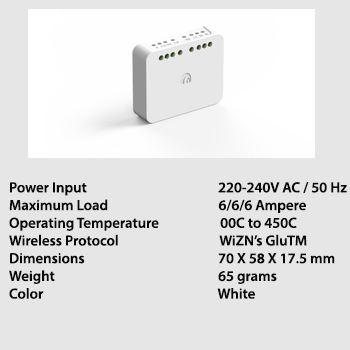
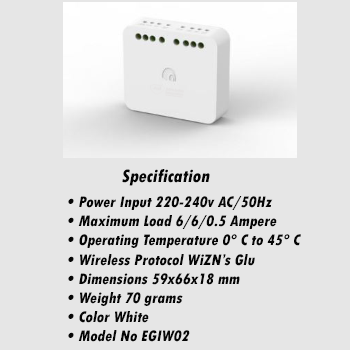
This device is for indoor use only and is not water proof. Goes behind switch plate. Maximum load allowed in 6A/load. Higher load can permanently damage the device Load can be controlled with mechanical switch as well as the APP It makes a normal switch a 2-way switch. A 2-way switch becomes 3-way.

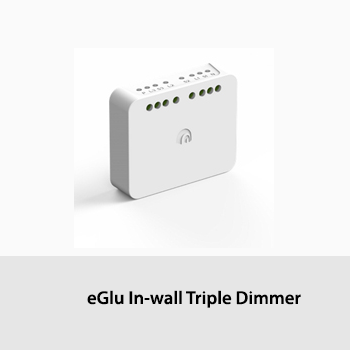
IWS-2S1D is same as IWS-3S except that the third switch can be used as a dimmer Maximum load allowed in 6A/load for L1 and L2 and 100W for the dimmer (L3) The dimmer can also be used to regulate fan speed and also as an on/off switch Some fans can make humming sound at lower speeds.

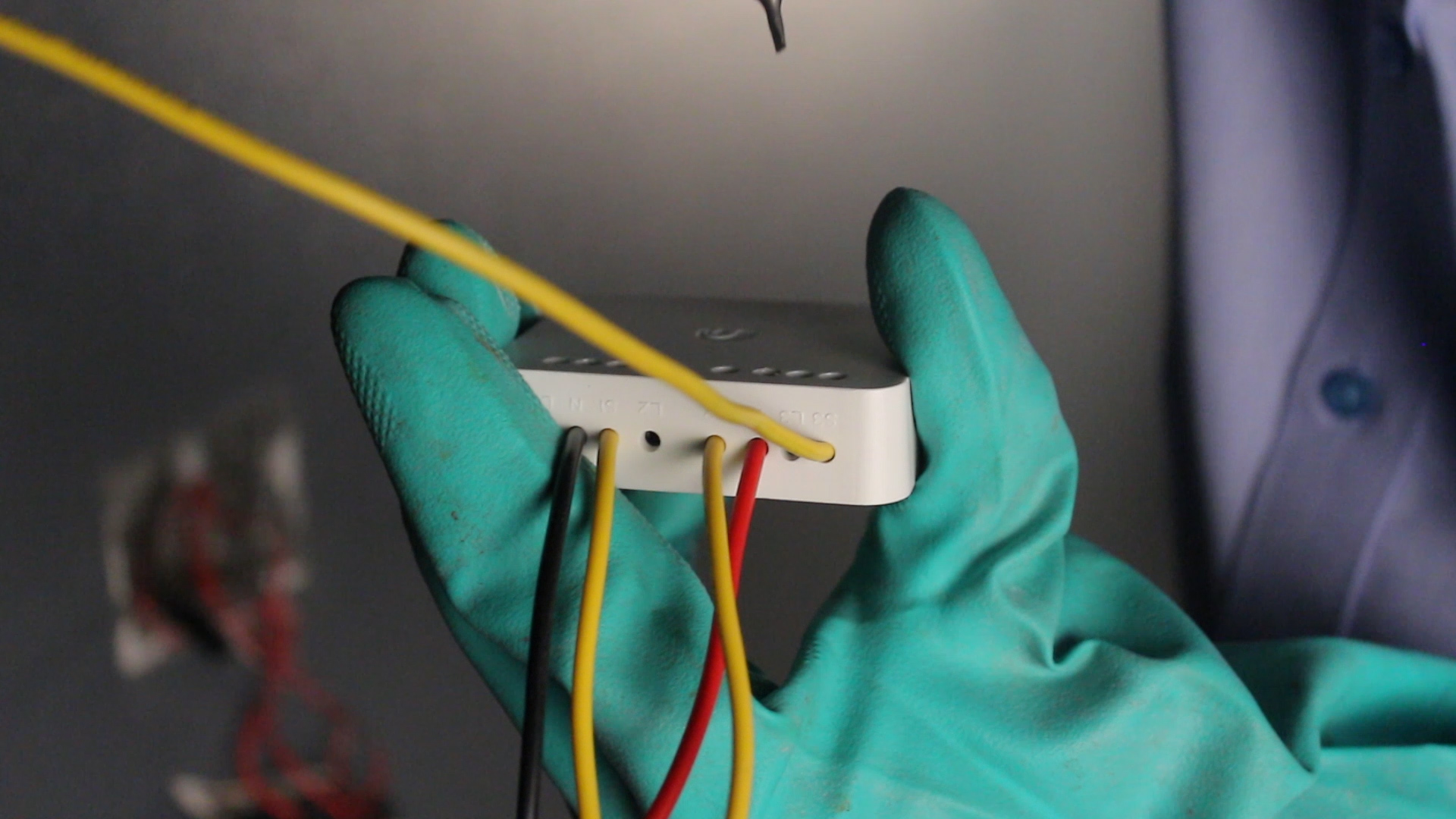
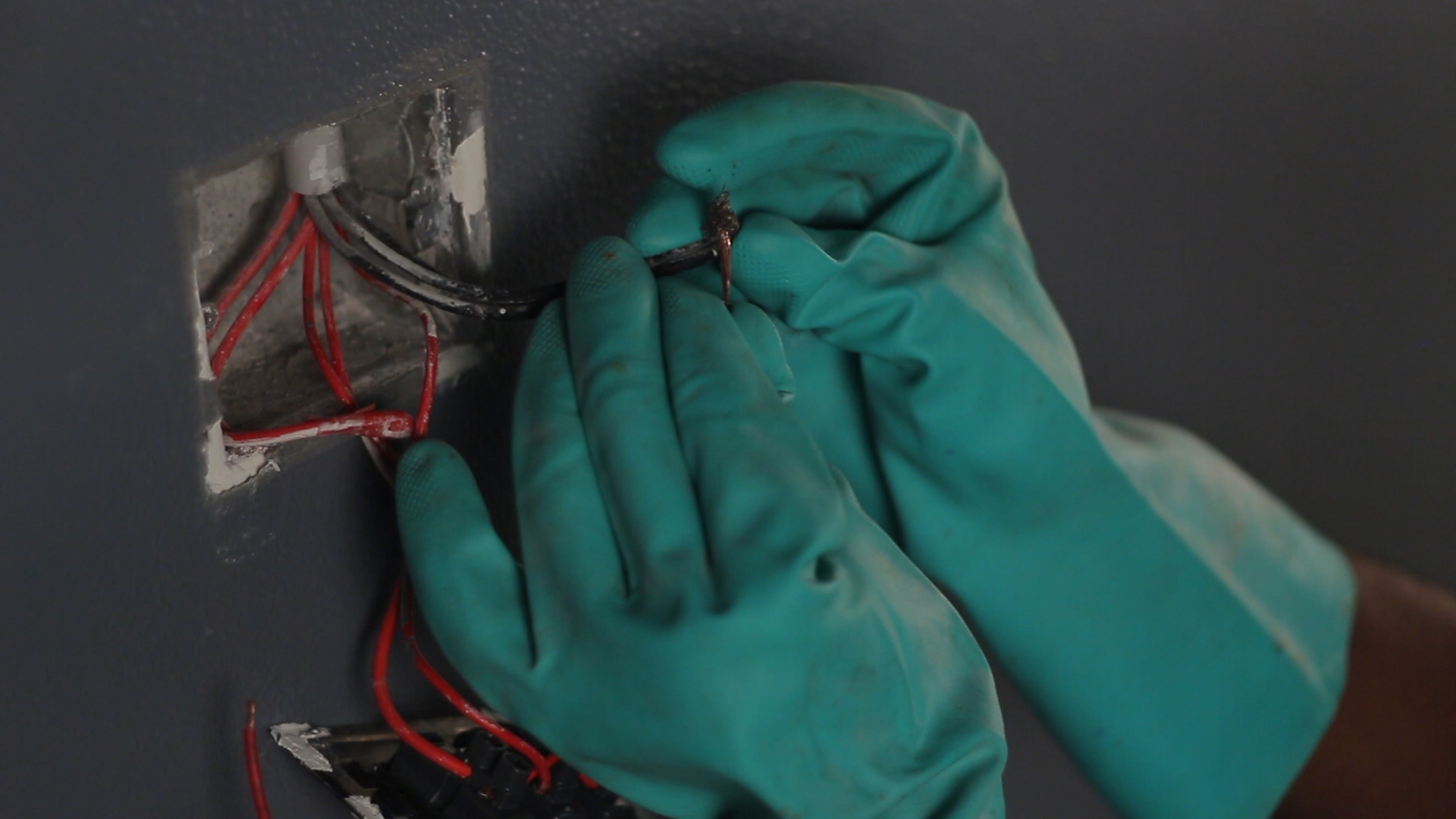
eGlu IWS is fully retrofit. No additional wiring is required Remove the wire which is going from the mechanical switch to the load and connect it to one of the load terminals, L1,L2 or L3 of IWS.

eGlu IWS will convert an existing 2-way switch into a 3-way switch, third control being the mobile APP For this to happen the IWS should be installed in the box in which the load wire is connected.

Do not use electrical wire thicker than 1.5mm2 for wiring IWS Remove the insulation up to 6mm only so that copper wire is not exposed The load terminals (L1,L2 and L3) should never contact neutral or earth If this happens IWS will be permanently damaged.

Placement-1 is the ideal placement and provides the best RF range for IWS But the condition is that the IWS surface should not have wires touching it Try to move all the wires to the empty space on the sides of IWS Also the press button should not get permanently pressed by any external object.

A simple IWS commissioning jig can be made as shown in the picture Connect a 6A plug with 1.5mm2 electrical wires Apply solder to the tips of the electrical wires to make them hard.

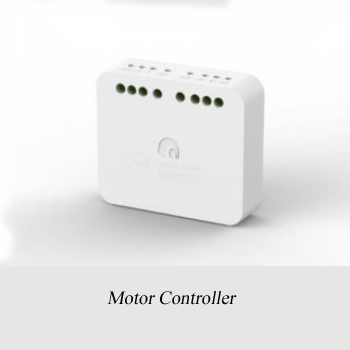
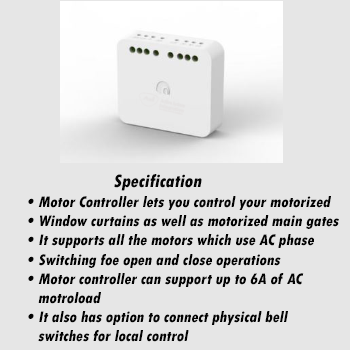
eGlu Motor Controller can be used for both curtain motors as well as main gate motors, as long as the AC load of the motor is less than 6A.The connections have to be made as per the wiring diagram.

Device Settings can be used to customize the tile, check device health and select device specific settings.

The above example is for a TAG being used as door sensor Each device tile can be customized with a picture and name Notifications for activities on a device can be turned on or off Various modes and settings of the device can also be configured.

A Scene is a shortcut to multiple actions, all of which will execute together Scene also allows enabling/disabling of Rules for various applications A Scene can be executed by pressing the tile or can be scheduled using a Rule Each Scene can be customized by a picture or icon and a name.

(3) Scheduled Action Rules are very simple and intuitive to create for customized applications Each rule can be individually enabled or disabled.

IP Camera can be directly added into eGlu APP for remote viewing To do that the camera has to be installed on the same Wi-Fi network as eGlu HUB The installation includes LAN IP assignment as well as port forwarding in the router.

By default, few standard rooms are provided in the APP, which can be edited New rooms can be added any time by clicking the ‘+’ button Each room can be customized with a picture and devices can be added under it.

Global settings consists of General Settings, Place Settings and Account Settings General Settings has option to disable all notifications and hide unused devices Account Settings allow the user to change eGlu account password Place Settings give access to all the Places and HUBs under the user account.

A user can have multiple homes or places under the same account A HUB can be installed under any of the predefined places Each place can have multiple HUBs under it with each HUB having multiple devices.

An admin user can provide access to the HUB and devices under it to another user For this to happen, the new user should also have a verified account with eGlu Once the access is given, the HUB and devices show up in new user’s APP.

There can be a need to change the HUB Wi-Fi connectivity to a different router This can be done by using ‘Update Wi-Fi’ setting under that particular HUB In case the router to which HUB is connected is not available, a Wi-Fi reset is needed For Wi-Fi reset, press the button on HUB and release it only when LED blinks green.

A device can be removed from the HUB using device settings A device can be removed only when both HUB and device are on-line Removal of device form a HUB will also remove all the device data from the server.

A HUB can also be decommissioned or reset to factory defaults This can be done from the HUB settings Once decommissioned, HUB can be commissioned to any other user account Before decommissioning a HUB, also the devices should be removed from it first.

Install eGlu Mate on an Android Device Connect it to the same Wi-Fi as eGlu HUB Login with the same credentials It will locally sync user specific cloud logic All rules will work even without internet Can also make calls / send SMS to the user.

Check the device health. If the signal level is less than 15, it implies node is losing connection with HUB. This can also happen is device is very close to the HUB, then the signal levels will be more than 60. Try to re-position the HUB or the device.
Active System Integration is a Indian company and are suppliers and installers of advanced cctv camera surveillance solutions for the business
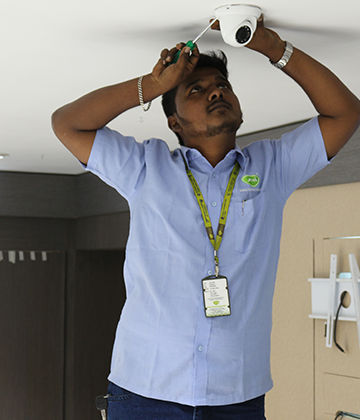
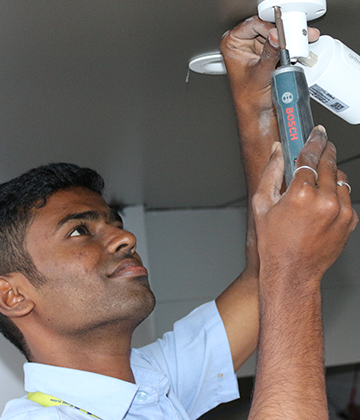
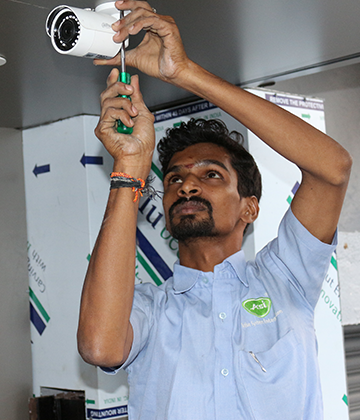
ASI are Suppliers & Professional Installer’s of the highest quality CCTV security cameras systems on the market. We supply & install the latest technology in CCTV security for commercial and domestic use.
Most of our business comes from the Tamil Nadu, however/
we do ship our products everywhere in the India. No project is too small or too large for us to handle.
admin@asi.ind.in
New# 16, Old# 441, 'N' Block,21st Street, Anna Nagar East, Chennai-600102.
999 412 6666

.png)
.png)
.png)
.png)
.png)
.png)
.png)
.png)

 asichennai tamilnadu.jpg)
 asi chennai tamilnadu.jpg)
 asi chennai tamilnadu.jpg)
 asi chenni tamilnadu.jpg)
 asi chennai tamilnadu.jpg)
 asi chennai tamilnadu.jpg)
 asi chennia tamilnadu.jpg)
 asi chennai tamilnadu.jpg)
 asi chennai tamilnadu.jpg)
 asi chennai tamilnadu.jpg)